

Tools & Functions
Tools enable your AI agents to perform actions beyond conversation by calling external APIs, querying databases, checking calendars, updating CRMs, and more. BlackBox implements function calling using industry-standard JSON schemas, compatible with supported LLM providers (OpenAI, Groq, Grok, DeepSeek, and custom-compatible models).Overview
When you configure tools for an agent, the LLM gains awareness of available functions it can invoke during conversations. The agent autonomously decides when to call a tool based on context, executes the function via webhook, receives the result, and incorporates it into the conversation. Key capabilities:- Industry-standard JSON Schema for tool definitions
- Webhook calls include call metadata (callId, agentId, orgId, additionalData) so your service has full context
- Automatic retry policy with exponential backoff handles transient webhook failures (initial attempt plus up to three retries)
- Integrated tooling to exercise webhooks from the dashboard and the
/api/v1/webhooks/testendpoint
How Function Calling Works
The function calling workflow follows this sequence:Execution Flow
- User Input: User asks a question or makes a request
- LLM Analysis: The language model analyzes the request with tool schemas in context
- Tool Selection: LLM autonomously decides if a tool call is needed and which tool to invoke
- Argument Generation: LLM generates properly formatted arguments matching the tool schema
- Webhook Invocation: BlackBox sends a POST request to your webhook URL with the tool call payload
- External Execution: Your webhook handler processes the request and calls external systems
- Result Return: Webhook returns the result in JSON format
- Response Generation: LLM incorporates the result into its response to the user
Defining Tools
Tools are defined using JSON Schema, which describes the function name, description, and expected parameters.Basic Tool Structure
Tool Properties
Required Fields
name (string, required)- Unique identifier for the tool
- Must match pattern:
^[a-zA-Z_][a-zA-Z0-9_]*$ - Must start with a letter or underscore; hyphens are not allowed
- Used by LLM to reference the function
- Example:
"get_weather","book_appointment","search_database"
- Clear explanation of what the tool does
- Helps the LLM decide when to use this tool
- Should describe inputs, outputs, and side effects
- Example:
"Get current weather information for a specific city. Returns temperature, conditions, and forecast."
- JSON Schema defining the tool’s parameters
- Must be a valid JSON Schema object
- Describes expected arguments and their types
- Supports complex nested structures
- Configuration for the webhook endpoint that executes the tool
- Contains URL and optional headers
- See Webhook Configuration below
Optional Fields
fallBackResult (any, optional)- Default result returned if webhook fails or times out
- Can be any JSON-serializable value
- Allows conversation to continue gracefully on errors
- Example:
{"error": "Service temporarily unavailable"}
- Maximum time to wait for webhook response
- Validated range: 1-300 seconds
- Note: Webhook calls currently use a fixed 60-second HTTP timeout regardless of this setting
- After timeout, fallback result is used
- Number of retry attempts on webhook failure
- Validated range: 0-5
- Note: Webhook retries already use a global retry policy (initial attempt plus up to three retries with exponential backoff), so per-tool overrides are not yet applied
- Useful for handling transient network errors
JSON Schema Examples
Simple Parameter Tool
A basic tool with primitive parameters:Complex Nested Parameters
A tool with nested objects and arrays:Enumerated Options
A tool with predefined choices:Array Parameters
A tool that accepts arrays:Webhook Configuration
Webhooks are HTTP endpoints that receive tool call requests and return results.Webhook Object Structure
Request Format
When your tool is invoked, BlackBox sends a POST request to your webhook URL with the following JSON payload. Only headers configured in your tool definition are sent; no automaticX-BlackBox-* headers are injected.
callAdditionalData, agentAdditionalData, serverJobId, and sip fields are optional and only included when available.
Response Format
Your webhook must return a JSON response within the timeout period: Success Response (200 OK)fallBackResult will be used (if configured), or the agent will inform the user that the tool failed.
Response Best Practices
- Return Structured Data: Use JSON objects with clear field names
- Include Context: Return enough information for the LLM to formulate a complete response
- Handle Errors Gracefully: Return error objects instead of crashing
- Be Concise: Avoid returning massive datasets; summarize when possible
- Fast Response: Aim for sub-second responses to maintain conversation flow
Configuring Tools in the Dashboard
Step 1: Navigate to Tools Tab
When creating or editing an agent, navigate to the Tools tab: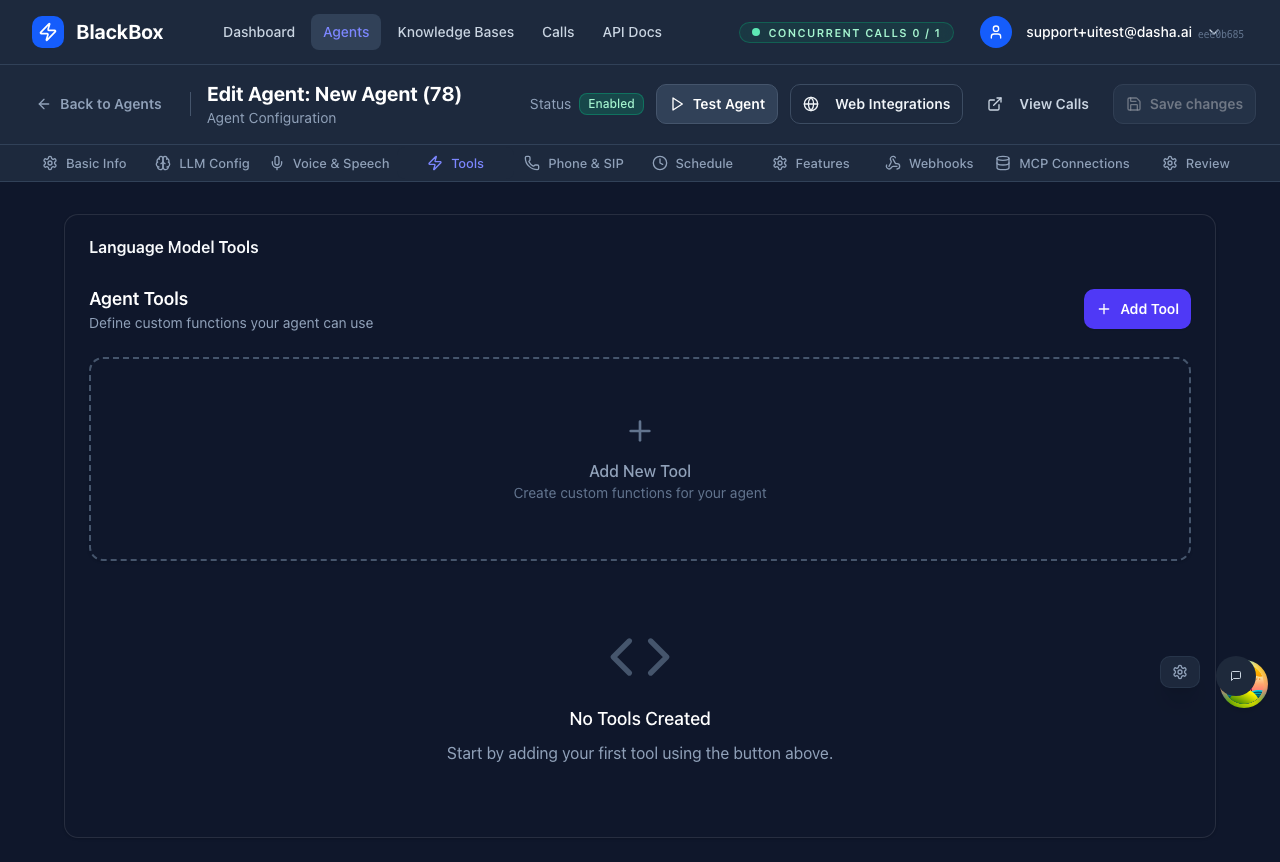
Step 2: Add a New Tool
Click Add Tool to create a new tool configuration:- Tool Name: Enter a unique identifier (e.g.,
get_weather) - Description: Describe what the tool does and when to use it
- Schema Editor: Define parameters using JSON Schema
- Webhook URL: Enter your webhook endpoint
- Headers: Add authentication and custom headers
- Advanced Options:
- Set timeout (1-60 seconds)
- Configure retry count (0-3)
- Define fallback result
Step 3: Test Your Tool
Use the built-in testing interface:- Click Test Tool
- Enter sample arguments
- Review the webhook request
- Verify the response
- Check that the LLM can interpret the result
Step 4: Save and Enable
After configuring your tools:- Click Save Agent
- Toggle Allow this agent to take calls
- Test with the dashboard test widget
Tool Webhooks vs Event Webhooks
BlackBox supports two types of webhooks:Tool Webhooks
- Purpose: Execute specific functions called by the agent
- Trigger: LLM decides to invoke a tool during conversation
- Request: Contains tool name and arguments
- Response: Returns function result to LLM
- Timeout: Tool webhooks use a fixed 60-second HTTP timeout; the
timeoutSecondsfield is validated (1-300 seconds) but not yet applied - Configured: Per tool in the Tools tab
Event Webhooks
- Purpose: Receive notifications about call lifecycle events
- Trigger: Specific events (call start, result, failure, deadline)
- Request: Contains event data and call metadata
- Response: Acknowledgment only (not used in conversation)
- Timeout: Fixed at 30 seconds
- Configured: In the Webhooks tab
Testing Webhooks
BlackBox provides a testing endpoint to validate your webhook implementations:Via Dashboard
- Navigate to agent’s Tools tab
- Click Test Tool on any configured tool
- Enter sample arguments
- Review request/response in real-time
Via API
Use the webhook testing endpoint:- HTTP response status and timing
- Response payload structure
- Error handling behavior
- Authentication and headers
MCP Tools
BlackBox integrates with Model Context Protocol (MCP) servers to provide pre-built tools without custom webhook development.What is MCP?
Model Context Protocol is an open standard for connecting AI agents to external data sources and tools. MCP servers expose tools that your agent can use automatically.Configuring MCP Connections
- Navigate to the MCP Connections tab
- Click Add Connection
- Enter the MCP server URL
- Click Test Connection to verify
- Review available tools from the server
- Save agent to enable MCP tools
MCP vs Custom Webhooks
| Feature | Custom Webhooks | MCP Servers |
|---|---|---|
| Setup Complexity | Medium (write webhook handler) | Low (connect to existing server) |
| Tool Discovery | Manual definition | Automatic from server |
| Schema Format | JSON Schema | MCP tool schema |
| Hosting | Self-hosted or cloud | MCP server provider |
| Customization | Full control | Limited to server capabilities |
Best Practices
Tool Design
Keep Tools Focused- Each tool should do one thing well
- Avoid multi-purpose tools with too many parameters
- Split complex operations into multiple simple tools
- Explain what the tool does in natural language
- Describe when the LLM should use this tool
- Include examples of valid inputs
- Mention side effects or limitations
- Define precise JSON schemas with proper types
- Use enums for fixed choices
- Add format hints (email, uri, date-time)
- Set reasonable min/max constraints
- Use schema defaults for optional parameters
- Configure sensible fallback results
- Set appropriate timeouts based on operation complexity
Webhook Implementation
Security- Always use HTTPS endpoints
- Implement authentication via headers
- Validate incoming requests
- Rate limit to prevent abuse
- Log all requests for debugging
- Respond within timeout (aim for under 1 second)
- Use async processing for slow operations
- Implement caching where appropriate
- Return concise responses
- Return structured error objects
- Use appropriate HTTP status codes
- Log errors for troubleshooting
- Configure fallback results for critical tools
- Implement retry logic in webhook handler
- Use idempotent operations when possible
- Monitor webhook uptime
- Set up alerting for failures
Schema Guidelines
Property DescriptionsCommon Use Cases
CRM Integration
Enable your agent to query and update customer records:Calendar Booking
Allow agents to check availability and book appointments:Knowledge Base Search
Let agents search internal documentation:Troubleshooting
Tool Not Being Called
LLM not invoking the tool:- Improve the tool description to be more specific
- Mention the tool in system prompt if critical
- Test with explicit user requests that should trigger the tool
- Check that the tool name is clear and descriptive
Webhook Timeouts
Webhook exceeding timeout:- Increase
timeoutSecondsfor slow operations - Optimize webhook processing time
- Use async processing and return immediately
- Configure appropriate
fallBackResult
Schema Validation Errors
Arguments not matching schema:- Review LLM-generated arguments in call logs
- Simplify complex nested schemas
- Add clear descriptions to all properties
- Use enums to constrain values
- Test schema with webhook testing endpoint
Authentication Failures
Webhook returning 401/403:- Verify header configuration in tool setup
- Check that API keys are valid and not expired
- Ensure webhook URL is correct and accessible
- Test webhook independently with curl/Postman
Next Steps
- MCP Connections - Connect to MCP servers for pre-built tools
- Webhook Events - Configure event notifications
- Testing Webhooks - Validate webhook implementations
- Dashboard Testing - Test tools in real conversations
API Cross-Refs
- POST /api/v1/agents - Create agent with tools
- PUT /api/v1/agents/ - Update agent tools
- POST /api/v1/webhooks/test - Test webhook endpoints
- POST /api/v1/mcp/verify - Verify MCP server